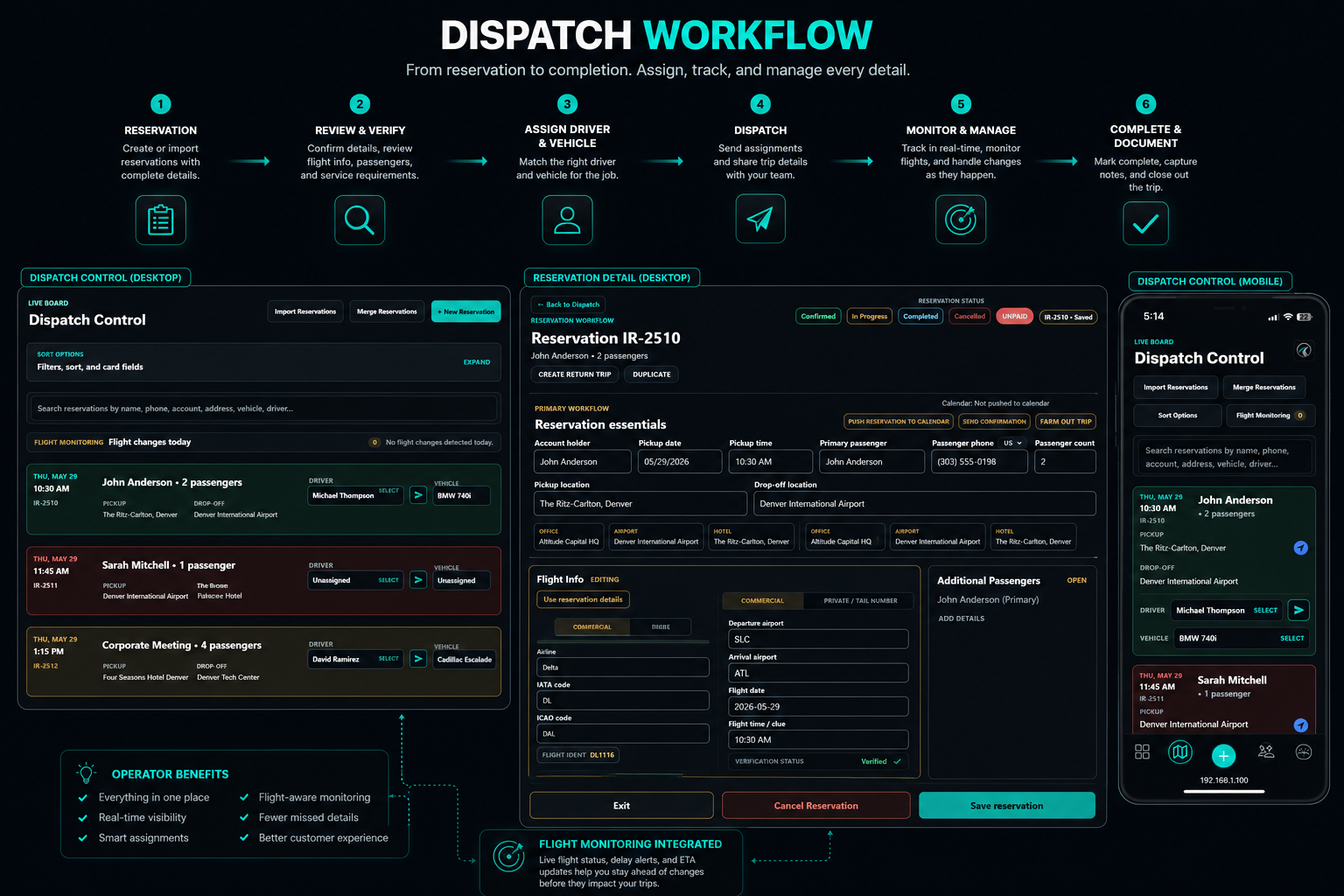
Overview
Dispatch Control is the live operational command center for reservations that need driver and vehicle coordination. It is designed for fast scanning, quick assignment, and real-time awareness so dispatchers and operators can understand what needs attention without digging through disconnected screens.
Dispatch Workflow at a Glance
- Reservation is created or imported
- Reservation appears in dispatch
- Operator reviews pickup time, passenger, account, and routing
- Driver and vehicle are assigned
- Dispatch communication is sent
- Driver accepts or confirms the assignment
- Reservation status updates
- Operator monitors the trip through completion
Understanding Dispatch Status
Status colors and badges are meant to help operators quickly understand what needs action, what is already moving, and what may need follow-up.
Unassigned
The reservation needs a driver, vehicle, or both before it is ready for dispatch.
Assigned
A driver and vehicle have been selected, but the trip may not yet be sent or confirmed.
Dispatched
The assignment has been sent to the driver through the available dispatch communication flow.
Driver Accepted
The driver has accepted or confirmed the trip, giving dispatch a clear operational signal.
In Progress
The trip is active and should be monitored through completion, especially for airport or VIP work.
Completed
The trip has finished and should no longer require live dispatch attention.
Cancelled / Needs Attention
The reservation has changed, stopped, or requires operator review before the day continues.
Driver and Vehicle Assignment
Operators use assignment controls to select the right driver and vehicle for each reservation. The goal is to match the service need, timing, passenger expectation, and available fleet capacity before dispatch communication is sent.
- Match vehicle capacity to passenger/luggage count.
- Confirm driver availability.
- Avoid double-booking.
- Assign early for airport and executive trips.
- Update assignments if operational conditions change.
Dispatch Communications
Dispatch messages may be sent by email, SMS, or future integrated communication tools. The message should give the driver enough context to understand the assignment without relying on separate notes or calls.
- Driver assignment details
- Pickup/dropoff information
- Passenger notes
- Flight information when applicable
- Acceptance/confirmation workflow
Driver Acceptance Workflow
When a driver accepts a dispatched trip, the system should update the reservation status and visually confirm acceptance in dispatch. Driver profile association matters because accepted trips need to remain visible in the correct driver workflow and connected to the right operational record.
Sorting and Filtering Dispatch
Sort Options and View Controls help operators reduce noise during active dispatch. Use them to focus the screen around the work that matters right now.
- Filter by date
- Sort by pickup time
- View assigned/unassigned trips
- Focus on today's operations
- Reduce clutter during active dispatch
Mobile Dispatch Use
iRyde OS is designed so operators can manage dispatch from a phone when needed. Mobile dispatch should support quick review and practical action when the operator is away from a desktop screen.
- Review reservation cards.
- Assign drivers and vehicles.
- Open reservation details.
- Use map/navigation shortcuts when available.
- Monitor live operational changes.
Flight-Aware Dispatch
Airport reservations may include flight verification and monitoring. Dispatch can use flight information to identify delays, changes, airport timing risks, or pickup adjustments before they create pressure for the chauffeur, passenger, or operator.
Best Practices
- Review dispatch at the start of each shift.
- Assign drivers early.
- Watch unassigned reservations.
- Confirm airport details.
- Keep driver notes clear.
- Use status changes consistently.
- Re-check dispatch after sending driver communications.
- Monitor accepted vs. pending assignments.
Common Issues
Driver did not receive dispatch
Confirm the driver contact information, message method, and whether the dispatch communication was sent.
Driver accepted but trip disappeared
Check date filters, status filters, and the assigned driver profile connected to the reservation.
Wrong driver profile linked
Review the driver assignment and update the reservation before sending new communication.
Vehicle assignment missing
Add the vehicle assignment so dispatch, operations, and service expectations stay aligned.
Reservation not showing in dispatch
Check the reservation date, status, required fields, and current dispatch filters.
Flight info incomplete
Add airline, flight number, date, airport, and timing details so dispatch can use flight-aware context.