Overview
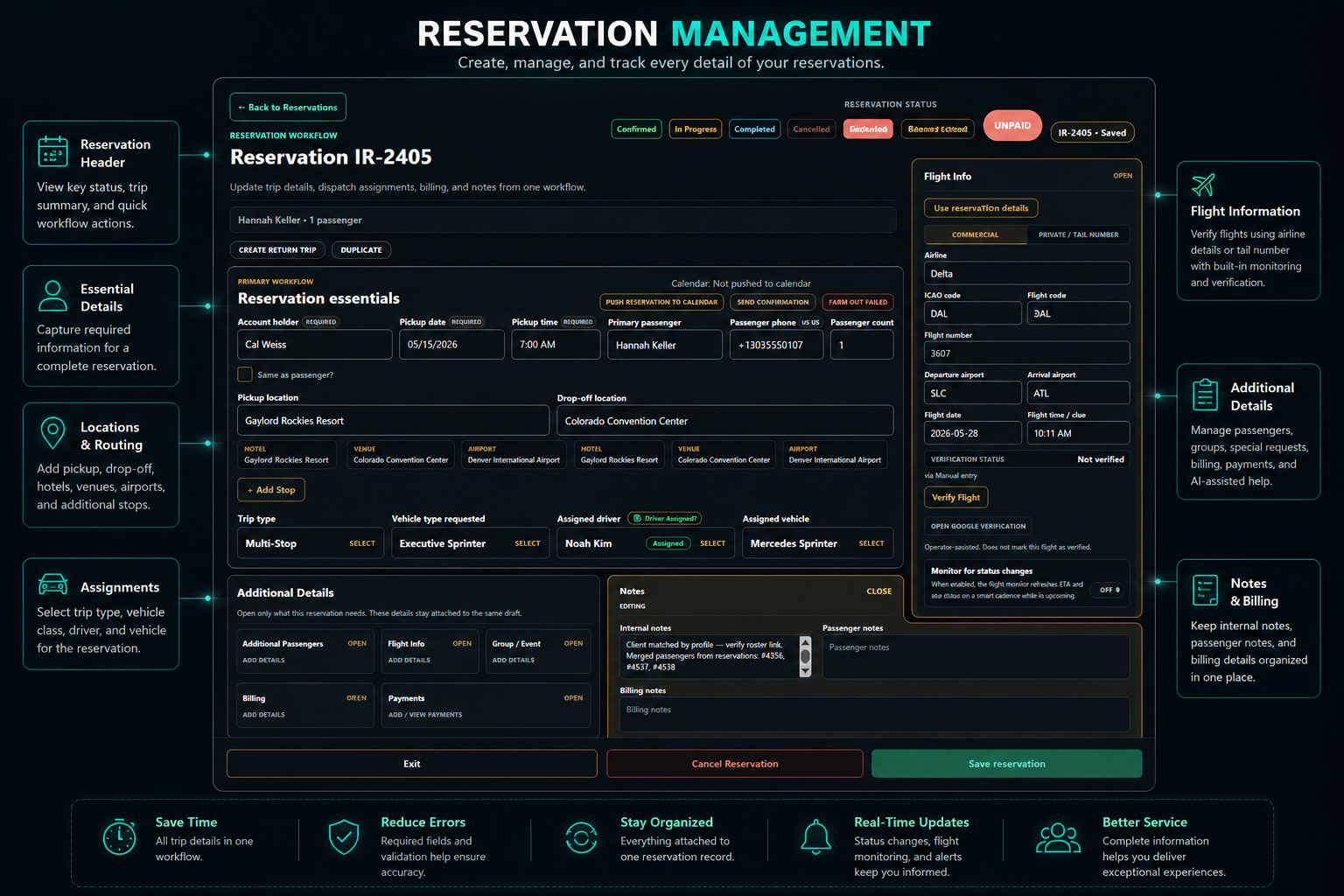
The reservation is the core operational object in iRyde OS. It connects the customer, passenger, pickup and dropoff locations, service details, flight information, driver, vehicle, communications, calendar events, and dispatch status into one working record.
What a Reservation Contains
Customer / account holder
The person or company responsible for booking, billing, and account history.
Passenger information
The rider details dispatchers and chauffeurs need for service execution.
Pickup location
The exact pickup address, airport point, venue, hotel, or meet location.
Dropoff location
The destination, stop, terminal, venue, or final service location.
Date and time
The scheduled pickup date and operating time used by reservations and dispatch.
Service type
The category of work, such as airport, hourly, point-to-point, event, or charter.
Passenger and luggage count
Capacity details that help operators select the right vehicle and service plan.
Vehicle preference
Requested vehicle class, customer preference, or operational requirement.
Driver assignment
The chauffeur selected for the trip once the reservation is ready for dispatch.
Flight information
Airline, flight number, airport, timing, and verification details for airport service.
Notes and special instructions
Operational context for dispatchers, chauffeurs, and customer service teams.
Pricing / payment details
Rate, payment, billing, and account information when the workflow is ready.
Communication history
Confirmation and dispatch communication records tied to the reservation.
Creating a Reservation
- Open Reservations
- Select New Reservation
- Choose or create the customer/account
- Add passenger details
- Enter pickup and dropoff locations
- Set date, time, and service type
- Add flight information if applicable
- Add notes or special instructions
- Assign vehicle and driver when ready
- Save the reservation
Customer vs Passenger
The customer or account holder is the person or company responsible for the booking. The passenger is the person actually riding. They may be the same person, but they are often different for executive assistants, corporate accounts, families, concierge bookings, and affiliate rides.
Airport and Flight Reservations
Airport reservations may include flight details that help dispatchers understand timing and risk before the trip reaches the chauffeur. iRyde OS is designed to support flight-aware dispatch, including FlightAware integration and Google-assisted verification fallback where configured.
- Airline
- Flight number
- Arrival/departure airport
- Flight date/time clue
- Verified flight candidate
- Estimated arrival/departure updates
- Dispatch timing risk
Reservation Status
Reservation status helps operators understand where the trip sits in the workflow. Exact labels may vary as the platform evolves, but the concept is to show what is new, confirmed, assigned, dispatched, active, completed, cancelled, or needing attention.
Draft / new
The reservation is being created or has not yet reached operational readiness.
Confirmed
The booking details have been reviewed and confirmed with the customer or account.
Assigned
A driver, vehicle, or both have been selected for the reservation.
Dispatched
Driver communication has been sent and the reservation is moving into dispatch workflow.
Driver accepted
The driver has confirmed the assignment through the available acceptance workflow.
In progress
The trip is active and should be monitored through completion.
Completed
The trip has finished and is no longer active in dispatch.
Cancelled
The trip has been cancelled and should be handled according to company policy.
Needs attention
The reservation requires operator review before it can continue safely.
Reservation Notes
Notes should be clear, operationally useful, and placed in the right context. Use passenger-facing notes carefully, and keep internal notes focused on what dispatchers or drivers need to know.
- Use passenger-facing notes carefully.
- Use internal notes for dispatcher or driver context.
- Include gate codes, meet-and-greet instructions, luggage notes, pet/service animal notes, child seat details, or special handling requirements.
- Keep notes clear and operationally useful.
Reservation Readiness Checklist
- Customer/account selected
- Passenger name and phone confirmed
- Pickup/dropoff addresses complete
- Date and pickup time verified
- Passenger and luggage count entered
- Vehicle class appropriate
- Flight info added if airport-related
- Driver and vehicle assigned when ready
- Confirmation sent
- Dispatch communication sent when appropriate
Editing an Existing Reservation
Operators can update reservations when details change. Review changes carefully before resending confirmations or dispatch messages, especially when the update affects pickup time, address, passenger details, flight information, driver assignment, vehicle assignment, notes, status, or communication needs.
Reservations and Dispatch
Once a reservation is operationally ready, it becomes part of the dispatch workflow. Dispatch uses reservation data to assign drivers, assign vehicles, send driver communications, and monitor trip readiness through the day.
Mobile Reservation Use
iRyde OS supports mobile reservation review and editing. Operators should be able to review reservation cards, open details, check passenger/account information, access route information, and manage key operational fields from a phone.
Best Practices
- Enter clean customer and passenger data.
- Confirm addresses before dispatch.
- Verify flights early.
- Keep notes short but useful.
- Avoid leaving key details only in free-text notes.
- Review reservations before assigning drivers.
- Re-check changes after editing.
Common Issues
Reservation missing from dispatch
Check the date, status, required fields, and current dispatch filters.
Passenger/account information appears wrong
Confirm whether the customer and passenger are separate records and update the correct field.
Flight information incomplete
Add airline, flight number, airport, date, and timing details before dispatch review.
Driver cannot see assigned reservation
Review driver assignment, driver profile association, and dispatch communication status.
Address suggestions unavailable
Check address spelling, service area context, and map integration settings when configured.
Confirmation was sent with outdated details
Update the reservation, review the final details, then resend confirmation if appropriate.